
Can You Reset A Map In Minecraft

I remember the first time I truly broke a Minecraft world. It wasn't with creepers, oh no, that's amateur hour. I was building this massive, ridiculously elaborate castle. Think turrets, moats, a secret dungeon – the works. I’d spent weeks on it. Then, I decided to experiment with some new redstone contraptions I’d seen online. You know, those things that can move entire mountains or, apparently, also delete large chunks of your painstakingly crafted landscape. One misplaced lever, a puff of pixelated smoke, and poof! My grandest turret, the one with the flag, was just… gone. Replaced by an endless void and a cascade of floating dirt blocks. My jaw practically hit the floor. I stared at the screen, a hollow echo in my chest. "What have I done?" I whispered to my empty room.
It was a moment of pure, unadulterated Minecraft despair. And it got me thinking, as I stared at this gaping hole where my pride and joy used to be: can you just… reset the whole thing? Like hitting the big red button and starting fresh, but keeping your amazing base? Or is it a case of "you broke it, you bought it" in pixelated form?
This is a question that’s probably crossed many a player’s mind, especially after a few too many accidental lava spills or… ahem… experimental TNT detonations. So, let’s dive into the glorious, sometimes messy, world of Minecraft world management. Can you, indeed, reset a map in Minecraft? The short answer, my friends, is a resounding ‘it depends’. And like most things in Minecraft, the answer is usually more nuanced and interesting than a simple yes or no.
The "Reset" Spectrum: What Do You Even Mean?
Before we go any further, let’s define what "resetting a map" could even mean. Are we talking about:
- Wiping the slate clean and starting with a completely brand new, randomly generated world? This is probably the most straightforward interpretation.
- Getting rid of all the changes you've made, but keeping the original terrain generation? Like rolling back to a pristine, untouched version of your current world.
- Resetting specific parts of your world? Maybe just that one exploded castle, or all the trees you accidentally chopped down in a 100-block radius.
Each of these has a different flavor of "reset," and therefore, a different set of tools and techniques to achieve it. So, let’s break down each scenario.
Scenario 1: The "Brand New World" Button
This is the easiest one. If you’re looking to start over with a completely fresh world, like you just hit "Singleplayer" for the very first time, there’s a dedicated button for that. In the Minecraft launcher, when you go to create a new world, you’re presented with options. You can:
- Delete your old world entirely. This is a permanent action, so be sure you’re ready to say goodbye to your current creations. Think of it like tidying up your desk by throwing out all the old papers. Sometimes necessary, sometimes a little sad.
- Simply create a new world alongside your existing ones. Minecraft is pretty generous with its storage space (within reason, of course). You can have multiple worlds saved at once. This is like getting a new notebook; your old one is still there, full of your scribbles and masterpieces.
This is your classic "reset." You get a fresh seed, new biomes appearing in new places, and a world that’s entirely untouched by your digital hammer. It's perfect if you're itching for a completely new adventure, a different spawn point, or if your current world has become… well, a little too chaotic. You know, like that one time I accidentally summoned a hundred zombies in my peaceful little farm. Oops.
Scenario 2: The "Nostalgia Trip" - Rolling Back Your World
Ah, the rollback. This is where things get a bit more technical, and for some, a bit more nerve-wracking. This is for when you want to undo your mistakes, but you really like the specific terrain and layout of your current world. You want to go back to how it was before you… well, before whatever catastrophe occurred.

For most players, especially those on Java Edition, the primary way to achieve a "rollback" is through world backups. Minecraft is surprisingly good at creating these automatically, especially if you’re playing on a server. But you can also manually create them.
How it generally works (and this can vary slightly by version and platform):
- Locate your Minecraft save folder. This is usually found in your user's AppData folder on Windows (%appdata%\.minecraft\saves), or in similar directories on macOS and Linux.
- Find the folder corresponding to your world. Each world has its own folder within the 'saves' directory.
- Copy this folder. Make a backup! Treat this like a digital emergency preparedness kit. You can rename the copied folder to something like "MyWorld_Backup_Date".
Now, if you do mess something up – like, say, accidentally overwriting your main save file with a corrupted one (don't ask how I know) – you can go back to your backup. You would then delete your current, broken world folder and rename your backup folder back to its original world name. Voila! You’re back in time. It's like having a time machine, but for your virtual life.
Important caveat: This only works if you have a backup from before the disaster struck. If you’ve never made a backup, and the damage is done within your current save file, then this method won't magically restore what’s lost. This is why regular backups are your best friend in Minecraft. Seriously, set a reminder. Your future self will thank you. Think of it as preventative maintenance for your pixelated kingdom.
For server owners, this is even more critical. Most server hosting services offer automatic backup solutions, and it's usually a few clicks to restore your server to a previous state. This can be a lifesaver if a plugin goes haywire or a player accidentally deletes a crucial build. It’s the digital equivalent of a fire alarm, but instead of smoke, you have grief. And the reset is the sprinkler system.

Scenario 3: Targeted Resets (The "Oops, Just That Bit" Approach)
This is where things get really interesting, and often, more practical. Sometimes, you don't need to wipe the entire universe. You just need to fix a localized problem. My exploding castle scenario falls squarely into this category. I didn't want to lose my entire world, just that one blasted turret.
This is where the power of commands and external tools really shines.
Using In-Game Commands (The "Vanilla" Solution)
If you have cheats enabled (or are an operator on a server), you have access to a powerful suite of commands that can modify your world. These are your digital chisels and paintbrushes.
The most relevant command for "resetting" a specific area is the /fill command. This command allows you to replace blocks within a specified region with other blocks. So, if my turret was a 20x20x20 cube of obsidian, and I wanted to replace it with air (effectively deleting it), I could do something like:
/fill x1 y1 z1 x2 y2 z2 air replace obsidian
Where `x1 y1 z1` and `x2 y2 z2` are the coordinates of two opposite corners of the area I want to clear. This is fantastic for removing large structures, filling in holes, or even replacing a whole biome (though that can be a bit more advanced and sometimes a bit laggy!).

You can also use /setblock to replace individual blocks, or /clone to copy and paste structures (which can be used to essentially "reset" an area by copying a pristine version back over it).
Commands are your go-to for immediate, in-game fixes. They're like having a magic wand, but you have to type in the incantation correctly. And trust me, typos happen. I once tried to fill an area with "stone" and accidentally typed "stnoe." The results were… unexpected. And not in a good way.
External Tools and World Editors (The "Advanced User" Option)
For more complex edits, or for players who prefer a visual interface, there are third-party world editing tools. These are programs that let you manipulate your Minecraft world files outside of the game itself. Think of them as Photoshop for your Minecraft world.
Some popular examples include:
- WorldEdit (often used with plugins/mods): This is a powerhouse for in-game editing, often used by server administrators. It offers brushes for terraforming, tools for selecting and manipulating large areas, and much more. It’s incredibly powerful for massive projects and, yes, for targeted resets.
- MCEdit: This is a standalone world editor that allows you to open your world files directly. It offers a 3D view of your world and allows for extensive manipulation, including deleting chunks, importing schematics, and more. It's been around for a long time and is a favorite for serious world builders.
These tools can do some truly incredible things. You can literally sculpt mountains, paint biomes, and, yes, delete or regenerate specific chunks of your world. If you’ve accidentally terraformed a pristine landscape into a barren wasteland with TNT, a world editor can often restore it or allow you to regenerate that specific area with a fresh generation. It’s like having a whole team of builders at your fingertips, but they’re all… digital.
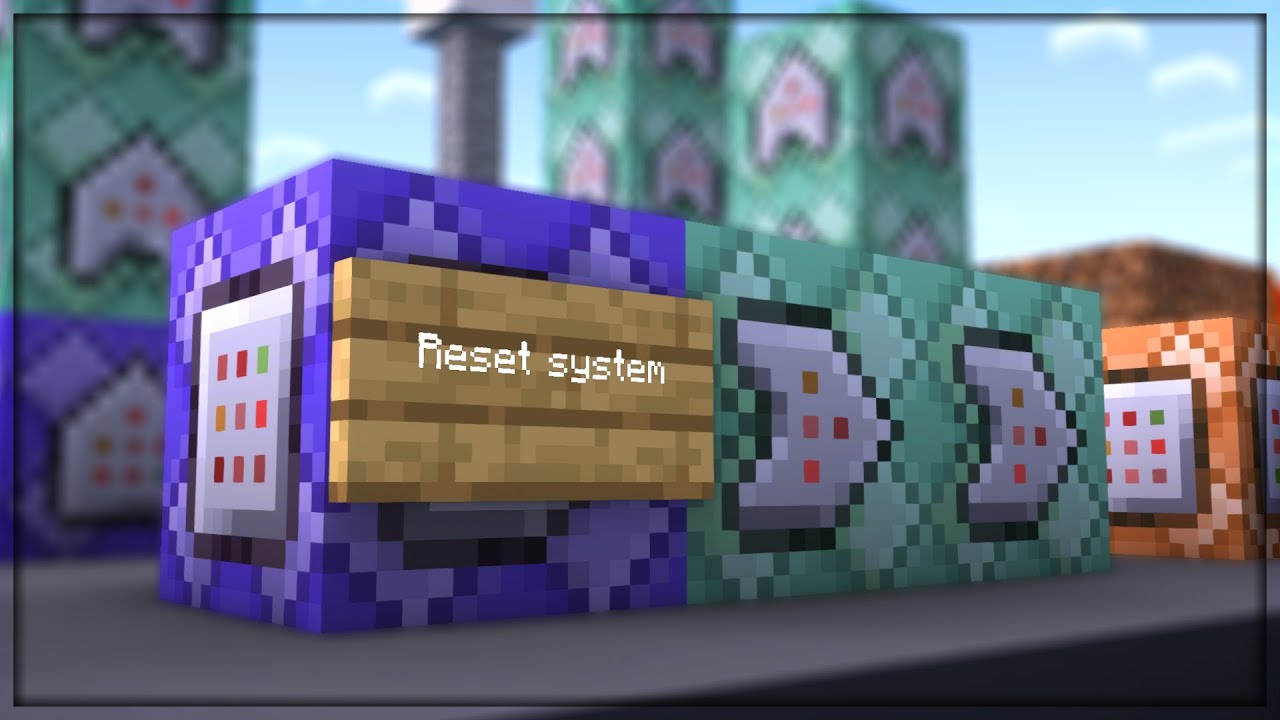
Using these tools requires a bit more technical know-how. You’ll need to download the software, understand how to import and export your world files, and learn the tool’s specific interface. But for those who want ultimate control over their Minecraft worlds, they are invaluable. They allow for a level of "reset" that goes beyond anything you can do with just in-game commands.
The Irony of "Resetting" in Minecraft
There's a certain irony to the idea of "resetting" a Minecraft world. Part of the magic of Minecraft is the permanence of your creations (or your mistakes!). Every block placed, every cave explored, every mob vanquished – it all leaves its mark. When you "reset" a world, you're essentially erasing that history, that unique journey you've taken.
And that’s not necessarily a bad thing! Sometimes, a fresh start is exactly what you need. But it’s worth remembering that the world you’ve built is a testament to your time, effort, and creativity. So, while the tools exist to undo and redo, the original creation, the one that existed before the reset, is a memory. A digital ghost.
Think about it. If you could instantly reset your real-life house to its original state after a terrible renovation disaster, would you? Or would you painstakingly fix the mistakes? In Minecraft, we have the luxury of both options. We can be meticulous renovators or we can be demolition experts with a magic wand. It's all part of the sandbox experience.
So, Can You Reset a Map in Minecraft?
Yes, you absolutely can, but the method depends entirely on what you mean by "reset" and what level of control you desire.
- For a completely new game: Just create a new world. Easy peasy.
- To undo major damage to your current world: Rely on backups. This is your safety net.
- To fix specific areas or make large-scale changes: Embrace in-game commands or external world editors.
The key is to understand the tools at your disposal. Whether you're a casual player who just wants to delete a misplaced block, or a seasoned architect looking to reshape entire landscapes, Minecraft provides the means. Just remember to save often, back up regularly, and maybe, just maybe, think twice before you decide to test the structural integrity of your castle with a stack of TNT. Unless, of course, that's part of your grand design for a "reset." Now that's a meta-level kind of chaos I can appreciate.