
How Do You Use The Magic Wand Tool In Photoshop
Okay, so picture this: I’m staring at a photo of my dog, Bartholomew, mid-zoomie. You know, that glorious blur of fur and pure, unadulterated joy. But there’s this tiny bit of stray grass stuck to his nose. Just a speck, really. And my brain immediately goes, “Photoshop! Magic Wand time!” It’s the digital equivalent of having a tiny, invisible fairy godmother ready to wave her sparkly stick. But then, as often happens when I think I’m about to wield some arcane Photoshop power, I pause. Do I actually know how to use this thing? Like, really use it? Or am I just going to end up with a selection that looks like a toddler attacked the image with a box of crayons?
We’ve all been there, right? You see a tool, you hear its name, and it sounds so promising. “Magic Wand.” It conjures images of effortless perfection, of instantly isolating the precise thing you want without breaking a sweat. And sometimes, just sometimes, it delivers. But more often than not, it feels less like magic and more like a quirky, slightly unpredictable assistant who has a mind of their own. So, let’s demystify this little marvel, shall we? Let’s figure out how to actually make the Magic Wand tool work for us, not against us, and maybe even pull off some genuine digital sorcery. Because Bartholomew deserves to be grass-free on his zoomie adventures, and so do you!
The Magic Wand: A Humble Beginning
The Magic Wand tool in Photoshop is one of those foundational selection tools. It’s been around for ages, and for good reason. Its core concept is delightfully simple: it selects pixels based on their similarity in color and tone. Think of it like this: you click on a pixel, and the Magic Wand says, “Okay, I see this color. Now, let me grab all the neighboring pixels that are pretty much the same color, and put a little marching ants outline around them.” Pretty straightforward, eh?
This makes it fantastic for selecting large areas of solid color. For example, if you have a photo with a perfectly clear blue sky, or a bold, flat-colored background, the Magic Wand can be your absolute best friend. You click once on the sky, and poof! The entire sky is selected. It’s like it’s reading your mind… almost. But like any good magic trick, there’s a bit of a process, a few hidden levers and pulleys, that make it truly effective.
The Crucial Settings: Tolerance is King (and Queen, and the Whole Royal Court)
The absolute most important setting when you're using the Magic Wand tool is the Tolerance. This is where the “magic” (or the frustration) really happens. Think of Tolerance as the tool’s flexibility. It dictates how strict or lenient the Wand is when looking for similar colors.
Here’s the breakdown:
- Low Tolerance (e.g., 0-10): This is for the super-picky Magic Wand. It will only select pixels that are very, very close in color and tone to the one you clicked on. If you’re trying to select a very specific shade of red in a complex image, a low tolerance might be what you need. It’s like saying, “Only pick up the exact same shade of crimson, nothing even remotely pinkish!”
- Medium Tolerance (e.g., 20-40): This is your everyday, go-to setting for most situations. It allows for a reasonable range of color variation. For our blue sky example, a tolerance of 30 might be perfect. It grabs most of the sky without going too far into the clouds or the edges of buildings. It’s a good balance of precision and coverage.
- High Tolerance (e.g., 50+): This Wand is feeling pretty relaxed. It’s willing to grab a much wider range of colors. If you have a very broad area of similar, but not identical, colors (like a slightly faded, textured background), a higher tolerance can be useful. However, be warned: too high a tolerance, and you’ll end up selecting way more than you intended. It’s like giving the Wand a huge bag of confetti and saying, “Just throw it everywhere!”
So, why is this so important? Because the wrong Tolerance setting is the number one reason the Magic Wand tool can feel like it’s possessed by a mischievous imp. Too low, and you’re clicking endlessly, trying to get all the bits. Too high, and you’re desperately trying to deselect half the image. You’ll likely find yourself adjusting the Tolerance repeatedly as you work. Don't be afraid to experiment! It's all part of the process.

Anti-alias and Contiguous: Your Other Best Friends
Beyond Tolerance, there are two other crucial checkboxes in the Options bar that can make a world of difference:
- Anti-alias: When this is checked (and it usually should be!), Photoshop smooths out the edges of your selection. Instead of a jagged, pixelated line, you get a softer, more natural transition. This is especially important if you plan on copying and pasting your selection elsewhere, or if you’re going to be applying adjustments to it. Think of it as giving your selection a nice, subtle feathered edge. Without it, your selection can look like it was cut out with scissors. Definitely keep this one checked for most tasks.
- Contiguous: This setting is a bit like the Magic Wand's social skills. When Contiguous is checked (the default), the Wand will only select similar pixels that are directly touching the pixel you clicked on. It sticks to its immediate neighborhood. This is usually what you want for selecting distinct areas, like that blue sky.
Now, what happens if you uncheck Contiguous? Ah, this is where things get interesting! When Contiguous is off, the Magic Wand goes on a color scavenger hunt across your entire active layer. It will find all the pixels on that layer that fall within your specified Tolerance range, no matter where they are. So, if you had a picture with a red car, red shoes, and a red balloon scattered around, unchecking Contiguous and clicking on the car would select the car, the shoes, and the balloon. This can be super handy for removing all instances of a particular color from an image, but you need to be very aware of what you’re doing. It’s the “spread the magic everywhere” setting.
Putting the Magic to Work: Practical Scenarios
Let’s get down to the nitty-gritty. When is the Magic Wand actually useful, and how do you use it effectively in those moments?
Scenario 1: Selecting a Solid Background
This is the classic Magic Wand scenario. You have an image of a person or an object on a plain white or colored background, and you want to cut them out. Here’s how you might approach it:

- Open your image in Photoshop.
- Make sure you’re on the correct layer. (This sounds obvious, but I can’t tell you how many times I’ve been frustrated because I was trying to select something on the wrong layer. Awkward silence.)
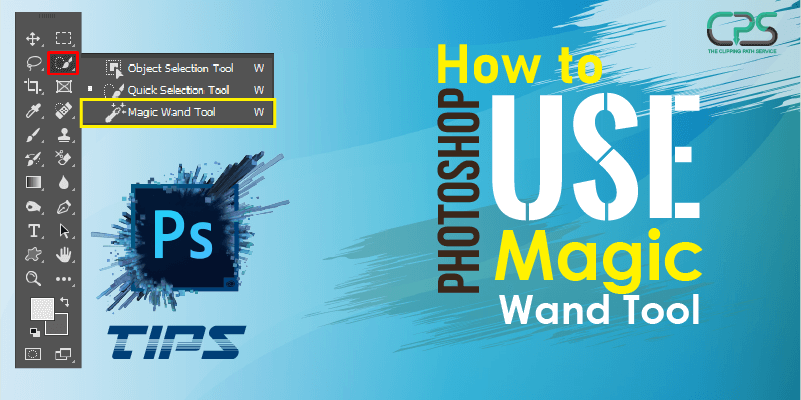
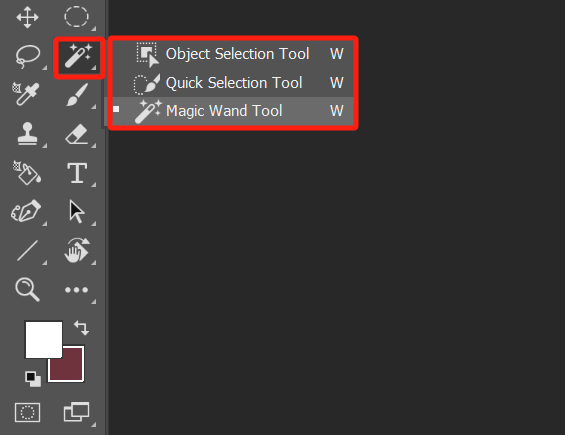
- Select the Magic Wand Tool. You can find it in the toolbar, often grouped with the Quick Selection Tool.
- Set your Tolerance. Start with a moderate value, like 30.
- Ensure Anti-alias is checked and Contiguous is checked.
- Click on the background color.
Now, observe your selection. Did it grab all of the background? If there are gaps or bits of background still showing, you’ll need to adjust. Try increasing the Tolerance slightly and click again. If it’s grabbing too much (like parts of your subject), decrease the Tolerance. You might need to click multiple times in different areas of the background to get a complete selection.
Pro Tip: If you need to add to your selection, hold down the Shift key while clicking on new areas. If you need to subtract from your selection, hold down the Alt (Windows) or Option (Mac) key while clicking on the areas you want to remove. This is your secret weapon for refining selections with the Magic Wand. You’re basically telling it, “Add this bit!” or “Nope, take that bit away!”
Scenario 2: Selecting a Specific Color Element
Let’s say you have a photo with a bright red flower, and you want to isolate just the flower for a special effect or to change its color. This is where the Magic Wand can shine, but it often requires a bit more finesse.
- Open your image.
- Select the Magic Wand Tool.
- Adjust Tolerance. For specific colors, you might want a lower tolerance to start. Let’s say you start with 15.
- Check Anti-alias.
- Consider Contiguous. If the flower has petals that are all connected, keep Contiguous checked. If there are separate bits of red you want to grab, you might experiment with unchecking it later.
- Click on the flower.
Here’s where the imperfection comes in. Often, the flower won’t be a perfectly uniform shade of red. There will be highlights and shadows, and edges that are slightly different. The Magic Wand, especially with a low tolerance, might miss some parts. This is where the Shift and Alt/Option key tricks are absolutely vital. You’ll likely be carefully clicking around the edges, adding small areas to your selection until you’ve captured the whole flower.
Irony Alert: Sometimes, for a detailed object like a flower, the Magic Wand can be more of a pain than a pleasure. If the colors are very varied or blend into the background, you might find yourself spending more time refining the selection than actually doing anything with it. In these cases, tools like the Quick Selection Tool, the Lasso Tools, or even the Pen Tool (for ultimate precision, but that’s a whole other magic show!) might be more efficient. Don’t be a slave to one tool just because it has “magic” in its name!
Scenario 3: Using Unchecked Contiguous for Global Color Selection
This is a more advanced use, but it can be incredibly powerful. Imagine you have a graphic design with several instances of a specific shade of blue used for different elements, and you want to change all of them to green at once.
- Open your graphic.
- Select the Magic Wand Tool.
- Set a Tolerance that you think will catch your target blue without grabbing too many other blues.
- Crucially, UNCHECK Contiguous.
- Ensure Anti-alias is checked.
- Click on one of the blue elements.
Watch as the marching ants jump all over your canvas, selecting every pixel of that specific blue, no matter where it is. This can be a massive time-saver! Once selected, you can then apply a Hue/Saturation adjustment or a Color Balance adjustment, and all those blue elements will change to green simultaneously. Pretty neat, huh? This is where the “magic” really feels like it. It’s like having a remote control for every instance of a certain color.
When the Magic Wand Fails (and What to Do About It)
Let’s be honest, the Magic Wand tool isn’t always the perfect solution. It struggles with:

- Complex Images: Photos with lots of intricate details, gradients, and subtle color variations. The Wand gets confused.
- Fuzzy Edges: Hair, fur, or soft transitions between colors. The Wand can’t quite figure out where to draw the line.
- Low Contrast: When your subject blends in too much with the background, the Wand has nothing distinct to grab onto.
So, what do you do when the Wand waves its tiny, ineffective stick? You reach for its siblings!
- Quick Selection Tool: This is often the more intuitive and powerful sibling. You "paint" over an area, and Photoshop tries to intelligently select based on color and texture. It's usually much better for subjects with more complex edges than the Magic Wand.
- Lasso Tools (Lasso, Polygonal Lasso, Magnetic Lasso): These are more manual. The regular Lasso lets you draw freehand (think of it as drawing with a slightly shaky hand). The Polygonal Lasso lets you create straight-edged selections by clicking. The Magnetic Lasso tries to snap to edges, which can be helpful but also frustrating.
- Pen Tool: The king of precise selections. It uses bézier curves to create paths, which you can then convert into selections. It has a steep learning curve, but if you need surgical precision, this is your tool. It’s the difference between a quick sketch and a meticulously drawn blueprint.
- Select Subject / Object Selection Tool: These AI-powered tools are Photoshop’s modern marvels. Often, just clicking “Select Subject” will give you an amazing starting point for your selection, which you can then refine with other tools. Seriously, try these first sometimes!
The key is to understand that no single tool is perfect for every job. The best Photoshop users are the ones who know which tool to grab for which situation, and when to combine them.
Final Thoughts: Embrace the Imperfection
So, the Magic Wand tool. It’s not quite the mystical artifact it sounds like, but it’s definitely a useful instrument in your Photoshop orchestra. It’s best for simpler, more defined areas of color. And even when it’s not perfect, remember those Shift and Alt/Option keys for refining your selections. They are your best friends in the often-messy world of digital editing.
Don’t get discouraged if your first few attempts with the Magic Wand result in more chaos than clarity. That’s part of learning! Play with the Tolerance, observe what happens when you check or uncheck Contiguous. Treat it like a puzzle, or a friendly experiment. And remember Bartholomew and his rogue bit of grass. Sometimes, the simplest problems require a little bit of digital magic, or at least a good understanding of how the magic is supposed to work. Now go forth and select!