
How To Disable Touchscreen On Dell Laptop
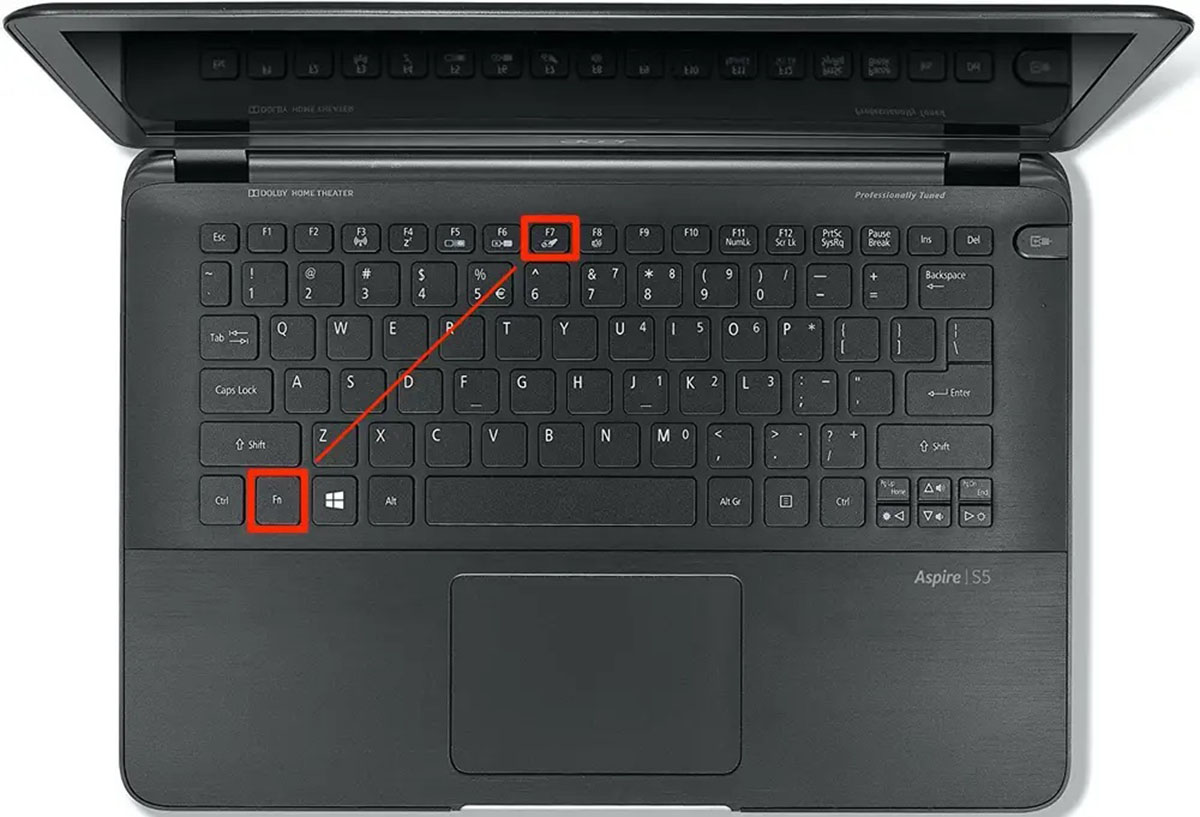
Ever found yourself accidentally brushing your Dell laptop's touchscreen and sending your carefully crafted document flying across the screen? Or maybe you’re a dedicated keyboard and trackpad user and the touch feature feels a bit… in the way? You're not alone! Learning how to disable the touchscreen on your Dell laptop is a surprisingly useful skill, and it’s not as complicated as you might think. Think of it as unlocking a little secret setting that can subtly improve your daily digital life.
So, what’s the big deal about turning off a touchscreen? Well, it's all about user preference and control. For some, the touchscreen is a delightful addition, allowing for intuitive navigation and a more tactile way to interact with their device. But for others, especially those who spend hours typing or gaming, accidental touches can lead to frustration and lost work. Disabling it ensures your laptop behaves exactly as you expect, focusing your interactions through the keyboard and trackpad. It can also be a great way to extend battery life slightly, as the touchscreen component won’t be actively drawing power.
The benefits extend into practical scenarios. In an educational setting, a student deeply engrossed in writing an essay might find their work disrupted by accidental screen touches. Disabling the touchscreen can create a more focused environment for learning and productivity. For professionals, especially those who rely on precise cursor control for tasks like graphic design or complex data entry, a stray finger can be a significant annoyance. Imagine a surgeon reviewing scans or an engineer working on intricate blueprints; a steady, predictable input method is paramount. Even for everyday use, like watching a movie, you might not want to accidentally pause or skip scenes with a casual lean against the screen.
Ready to explore this? It's easier than you think! The most common and straightforward method involves accessing the Device Manager in Windows. To get there, a quick search for "Device Manager" in your Windows search bar will bring it right up. Once open, you'll want to look for a category named "Human Interface Devices". Expand this category, and you should see an entry that says something like "HID-compliant touch screen". This is your target! Simply right-click on it and select "Disable device". A confirmation prompt will appear, and once you click "Yes," your touchscreen will be temporarily deactivated.
What if you want to turn it back on? No problem! The process is identical, but this time you'll select "Enable device" from the right-click menu. It's a simple toggle switch at your fingertips. For those who like to experiment, consider trying this out during a time when you're not actively working on something important, like while browsing the web. You'll quickly get a feel for how much of a difference it makes. Some Dell laptops might also have specific software utilities that offer touchscreen control, so a peek into your Dell support applications could reveal even more tailored options. It’s all about discovering what works best for your unique workflow and making your Dell laptop a more comfortable companion.