
How To Do Coloured Text In Discord

Ever scrolled through Discord and seen those eye-catching messages that just pop? Maybe a friend’s name is a vibrant red, or a crucial announcement is a cool blue. It’s not magic, and it’s definitely not a premium feature you need to unlock! In fact, making your Discord text colourful is a super simple and surprisingly fun way to add a little personality and pizzazz to your chats. Whether you're trying to stand out in a busy server, highlight important information, or just want to inject some extra flair into your messages, learning to use coloured text is a fantastic skill to have.
So, what’s the big deal with coloured text? Think of it like wearing a bright shirt in a sea of beige. It immediately draws attention! In the fast-paced world of Discord, where messages can fly by in seconds, coloured text acts as a visual cue. It helps your message get noticed, making it easier to highlight key points, important updates, or even just your username. It’s a subtle yet effective way to communicate and engage with your fellow server members. Plus, let’s be honest, it’s just plain fun! Experimenting with different colours can be a small creative outlet, turning even a simple “hello” into something a bit more special.
The Magic Word: Markdown!
The secret sauce behind coloured text in Discord isn't some hidden command or complicated code. It's all thanks to something called Markdown. Markdown is a lightweight markup language that Discord (and many other platforms) uses to format text. It’s like a secret handshake for your keyboard that tells Discord how to make your words look extra special. You don't need to be a coder to use it; it's all about specific characters you type before and after your text.
Discord has a built-in feature that interprets these Markdown codes. When you type them, Discord automatically changes how your text appears. This means you can do things like make text bold, italic, strikethrough, or even add code blocks. And, of course, we’re focusing on the colourful part!
Making Your Mark: The Colour Codes
Now, for the exciting part: how do you actually get the colour? Discord uses a specific syntax for coloured text, and it’s tied to the concept of code blocks. You’ll often see coloured text appearing within these blocks because that’s where Discord’s formatting capabilities are strongest. It might seem a little technical at first, but once you get the hang of it, it’s a breeze.
The key to coloured text lies in using a specific type of code block that allows for language highlighting. Think of it as telling Discord, "Hey, this text isn't just plain text; it's got a specific 'language' that tells you how to format it." The ‘language’ we’re interested in for colour is often referred to as “diff” or “css” (though you don’t need to know CSS or diff coding itself!).
Here’s how it works:
First, you start with a triple backtick (```). This tells Discord you’re about to enter a code block. Immediately after the opening triple backtick, you type the identifier for the type of highlighting you want. For colours, we’ll focus on the most common and straightforward ones.
Common Colour Codes and How to Use Them
The most popular way to get coloured text is by using the css identifier. This allows you to specify colours that are commonly used in web development and design, making your messages look extra sleek.
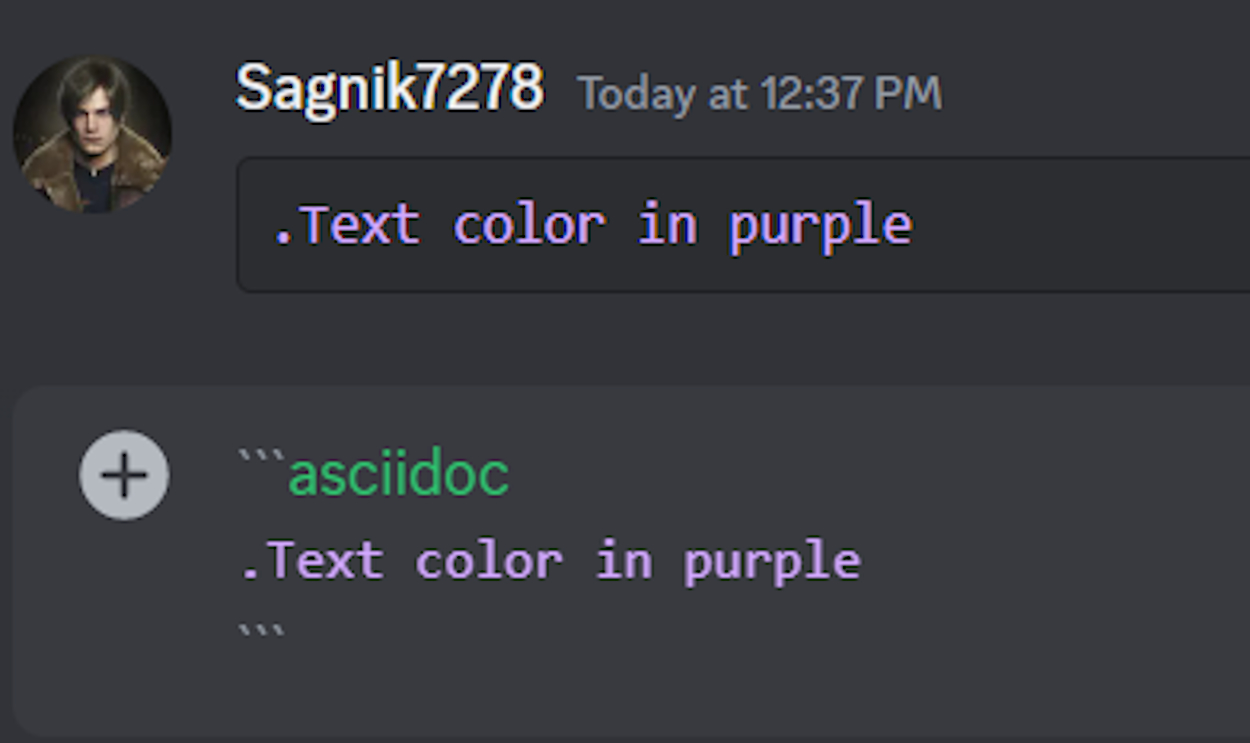
Here’s the basic structure:
```css
[your text here]
```
But wait, where’s the colour? The colour comes from what you add within the css block. You’ll be using special prefixes. The most common ones for basic colours are:
+ : For Green text
- : For Red text
How to Customize Discord Text Color and Boost Engagement! : For Yellow text
> : For Blue text
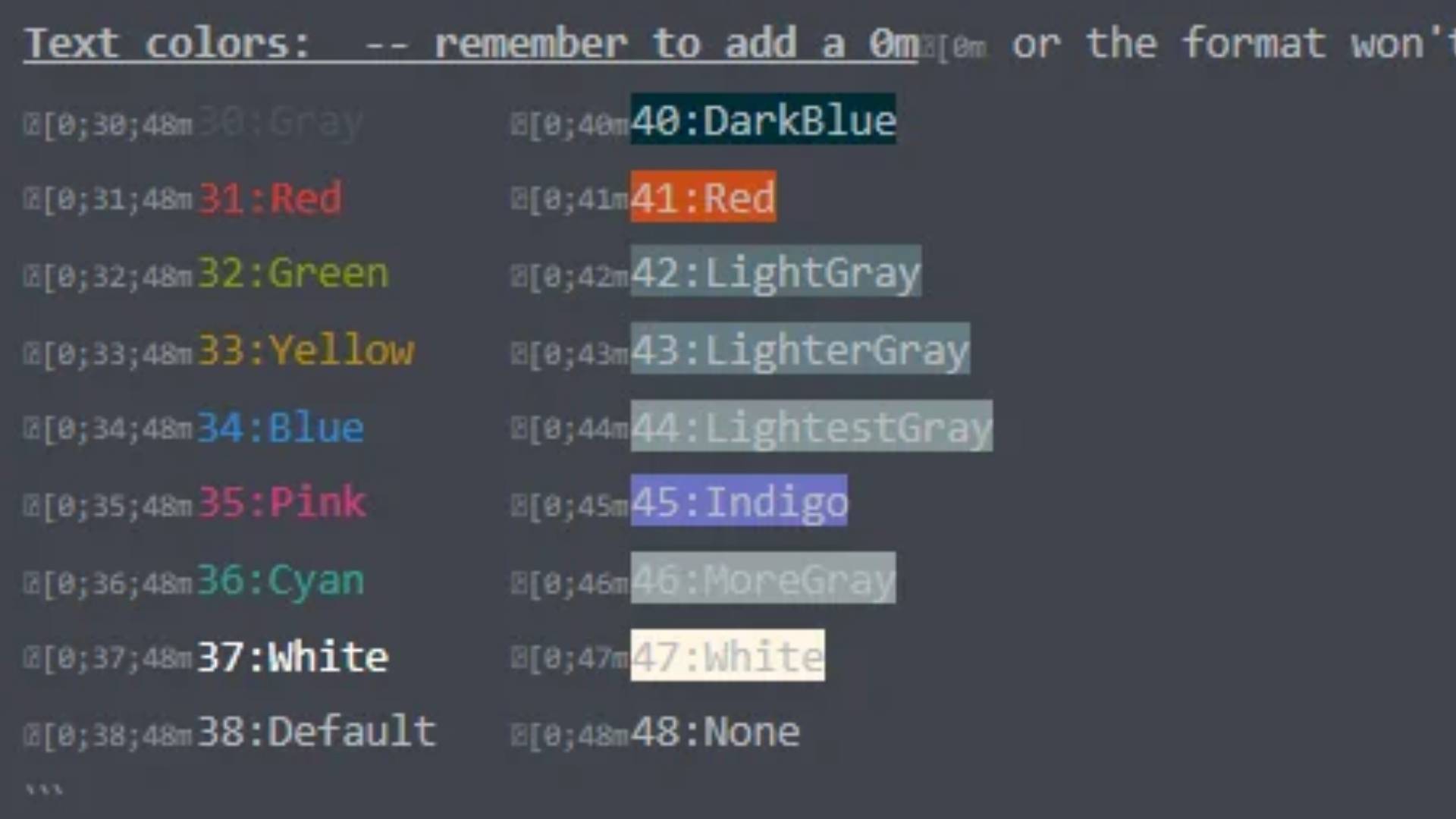
Let’s break down an example. If you want to write a message in green, you would type:
```css
+ This is a green message!
```
When you send this, Discord will render it as:

+ This is a green message!See? The plus sign right after css tells Discord to make the entire line that follows it green. You can do this for other colours too:
For red text:
```css
- This is a red announcement!
```
For yellow text:
```css

! Reminder: Meeting at 3 PM!
```
For blue text:
```css
> Important update incoming!
```
A Note on Usage and Servers
It’s important to remember that while this is a fun way to liven up chats, server administrators have the final say on what’s appropriate. Some servers might have rules against excessive or distracting use of coloured text, especially in announcement channels. Always be mindful of the server’s guidelines and use coloured text thoughtfully to enhance, rather than clutter, your messages. Experiment, have fun, and watch your Discord messages truly shine!