
How To Use Texture Packs In Minecraft

Ever looked at your trusty blocky world in Minecraft and thought, "You know, this could use a little... oomph?" Like, your dirt looks a bit too much like, well, dirt? Or your stone could be a bit more, shall we say, rock-solid? Well, my friends, get ready to have your minds blown, because we're about to dive into the magical, wonderful world of texture packs!
Think of it this way: Minecraft, by default, is like a delicious plain vanilla ice cream. It's good, it's reliable, but sometimes you crave that swirl of chocolate, those rainbow sprinkles, or even a decadent caramel drizzle. That's what texture packs do! They're like a super fun makeover for your entire game, making everything look and feel brand spankin' new!
So, how do we get our grubby little hands on these visual wonders? It's easier than baking a cake, I promise! First things first, you'll need to find a texture pack you fancy. The internet is your oyster, and there are tons of amazing places to look. Websites like CurseForge and Planet Minecraft are practically treasure troves!
When you're browsing, you'll see all sorts of cool names. You might stumble upon something called "Faithful," which is designed to look like vanilla Minecraft but just... better. Or maybe you'll find something totally wild like "Sphax PureBDCraft," which makes everything look like it's straight out of a comic book. Seriously, the possibilities are as endless as your imagination!
Once you've found "the one," the next step is downloading it. This is usually super straightforward. You'll typically download a file, often a .zip file. Don't panic if it looks a little squished! That's just its way of saying it's ready to be unpacked and made beautiful.
Unpacking the Magic
Now, we need to get that shiny new texture pack into the right spot in your Minecraft folders. This is where things might seem a tiny bit technical, but honestly, it's like finding a hidden chest. On Windows, you'll want to hit the Windows key + R. This opens up a little box that looks like it belongs in a spy movie.
In that box, type %appdata%\.minecraft and hit Enter. Boom! You're in the secret lair of your Minecraft game. Now, look for a folder named resourcepacks. If you don't see it, don't worry! You can just create it yourself. Right-click in the main .minecraft folder, select "New," and then "Folder." Name it exactly resourcepacks. Easy peasy!
Now, remember that .zip file you downloaded? This is where it goes. Drag and drop that file right into your newly discovered (or created!) resourcepacks folder. It's like tucking your new outfit away in your virtual closet, ready for action!
Activating Your New Look
You're almost there! Now it's time to boot up Minecraft. Once the game has loaded to the main menu, look for the Options button. Give that a click. Then, you'll see a button that says Resource Packs. This is where the real fun begins!
Clicking on Resource Packs will show you two columns. On the left, you'll see the texture packs that are available but not yet active. On the right, you'll see the ones that are currently being used. Your new texture pack should be chilling in the left column, probably looking a little lonely.
To activate it, just hover your mouse over it. You'll see a little arrow appear. Click that arrow, and poof! Your texture pack will magically teleport over to the right column, becoming your active look. You can even have multiple texture packs in the right column, and they'll layer on top of each other. It's like mixing and matching outfits!
Seeing is Believing!
Once you've got your texture pack in the active column, hit Done. Minecraft will do a little visual refresh, and then it's time to jump back into your world. Prepare to be amazed!
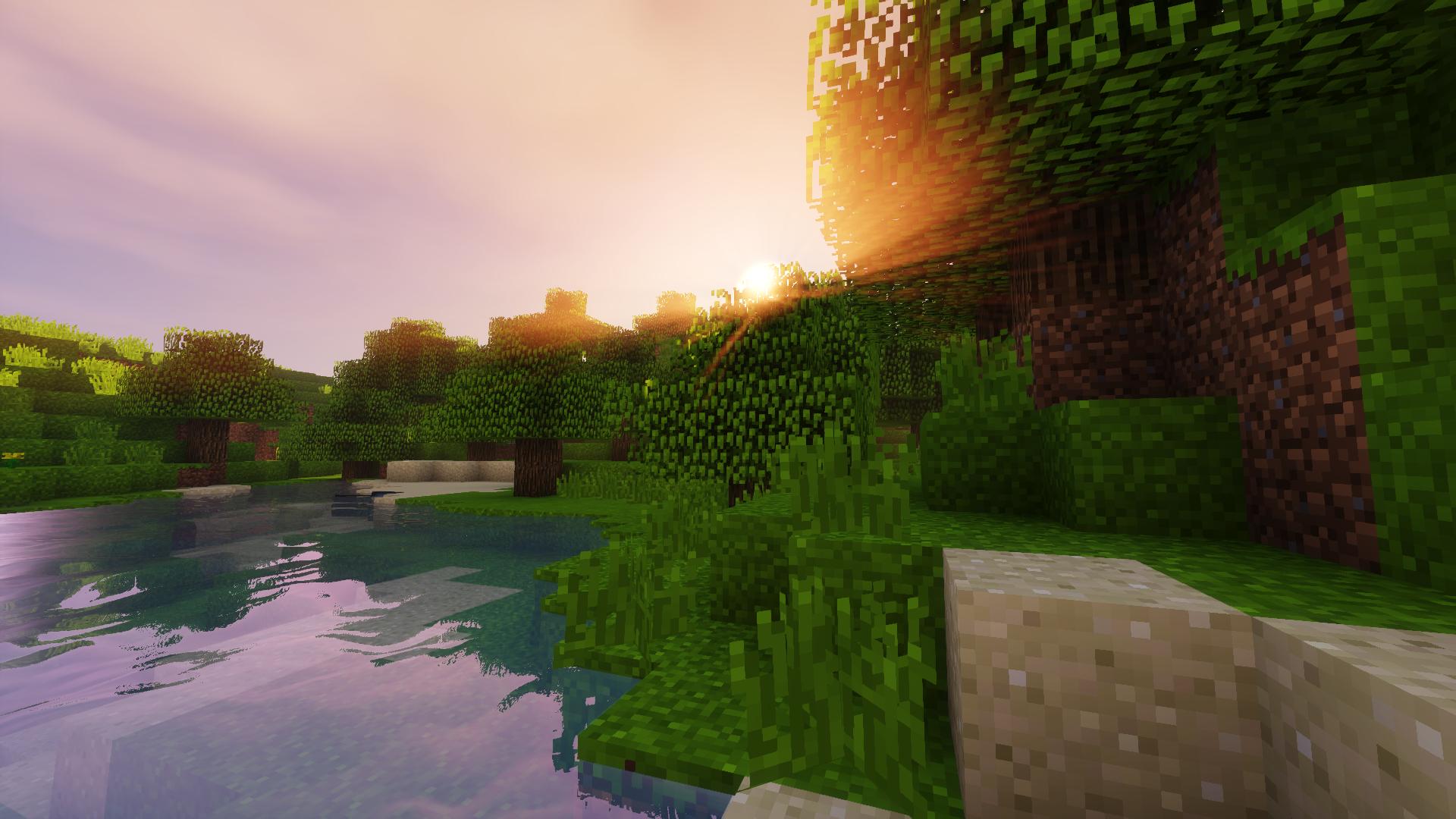
Your familiar cobblestone might now look like it's been chiseled by ancient giants. Your trees could be so lush and detailed, you'll expect a squirrel to scamper down them. Even your humble dirt blocks might have a newfound, earthy realism. It's like stepping into a whole new dimension of your favorite game!
Some texture packs even change the look of your mobs! Those creepers might become cute little green marshmallows, or perhaps terrifyingly detailed beasts. Your pigs could oink with a newfound, squealy charm. It’s a whole new world of visual surprises waiting for you.
A Few Extra Tips from Your Friendly Neighborhood Minecraft Enthusiast
Don't be afraid to experiment! What one person finds amazing, another might not. So, download a few different packs, try them out, and see what tickles your fancy. It's like going on a virtual shopping spree for your game!

Be mindful of your computer's power. Some super-duper, hyper-realistic texture packs might make your game run a little slower if your computer is on the older side. Think of it like trying to wear a sequined ball gown when you're just going to the grocery store – it might be a bit much!
Look for different resolutions. You'll see numbers like "16x," "32x," "64x," and even "128x" or higher. These refer to how detailed the textures are. "16x" is the default, and higher numbers mean more detail, but also potentially more strain on your computer. Start with something like "32x" or "64x" if you're unsure.
And the best part? Most texture packs are absolutely free! That's right, you can get a whole new look for your game without spending a single diamond.
So go forth, my fellow crafters! Dive headfirst into the incredible world of texture packs. Transform your blocky landscape into a masterpiece, a whimsical wonderland, or a gritty, epic adventure. Your Minecraft world is about to get a whole lot more exciting, and it's all thanks to a few simple clicks and a sprinkle of imagination!