
What Is A Touch Bar On The Macbook Pro
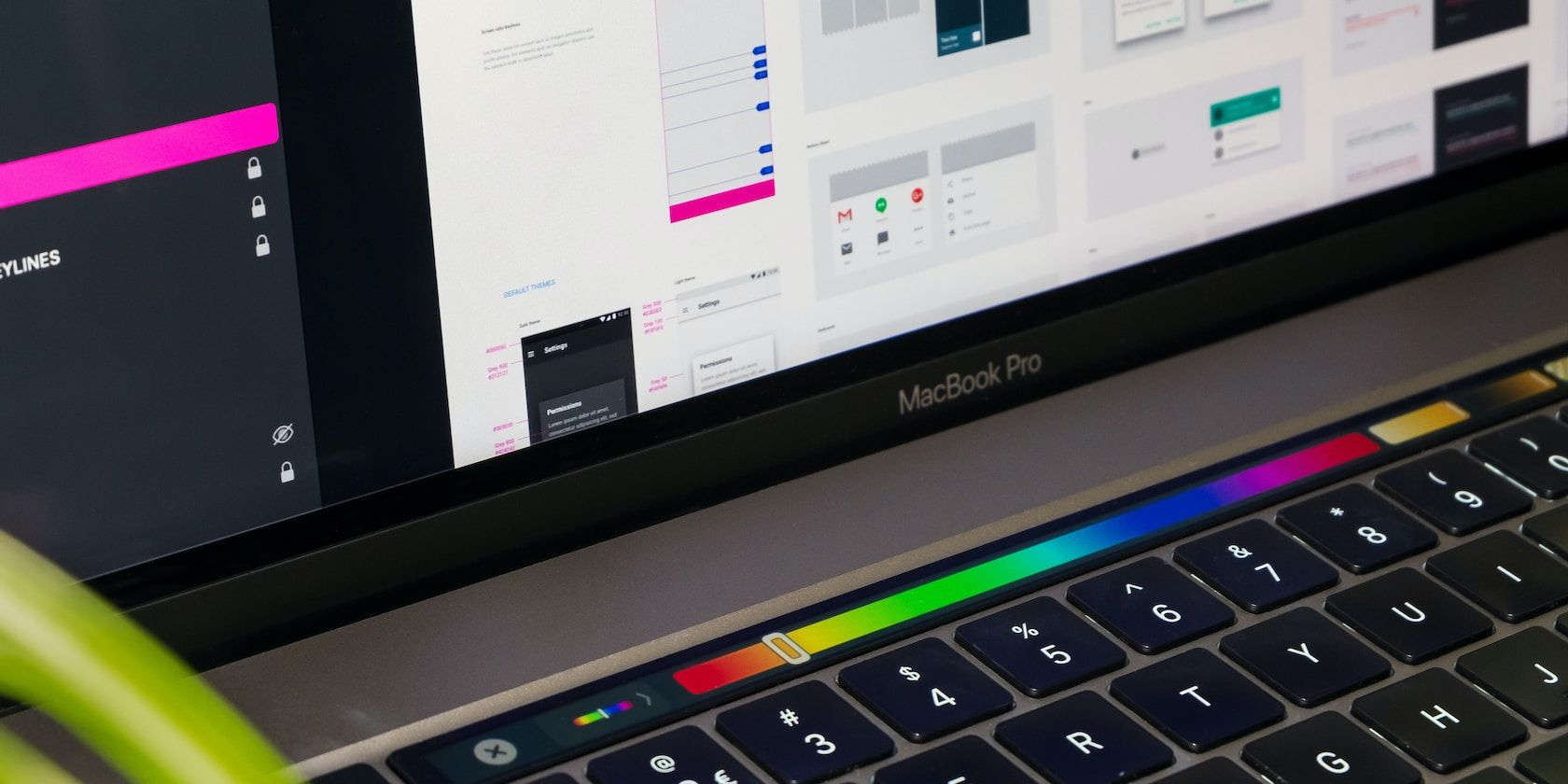
Okay, so picture this: I was wrestling with a particularly gnarly bit of code the other day. My brain felt like it was running on fumes, and I was desperately trying to remember a specific keyboard shortcut. You know the one – the one that saves your life but also seems to evaporate from your memory the moment you need it most. I was staring at the screen, fingers hovering over the keys, completely blank. Then, my eyes drifted down to the row of colorful icons that had replaced the traditional F-keys on my MacBook Pro. And there it was, glowing softly, a little beacon of hope: the Touch Bar.
It’s funny, isn’t it? How something so seemingly simple can be such a game-changer when you’re in the trenches of digital creation or, you know, just trying to get something done without losing your mind. The Touch Bar, for those who haven't had the pleasure (or the confusion), is that thin, elongated strip of touchscreen that sits right above your keyboard on some MacBook Pro models. Think of it as a dynamic, contextual friend that's always there to offer a helping hand, or at least a handy shortcut. No more memorizing endless key combinations, if the software you're using plays nice, anyway.
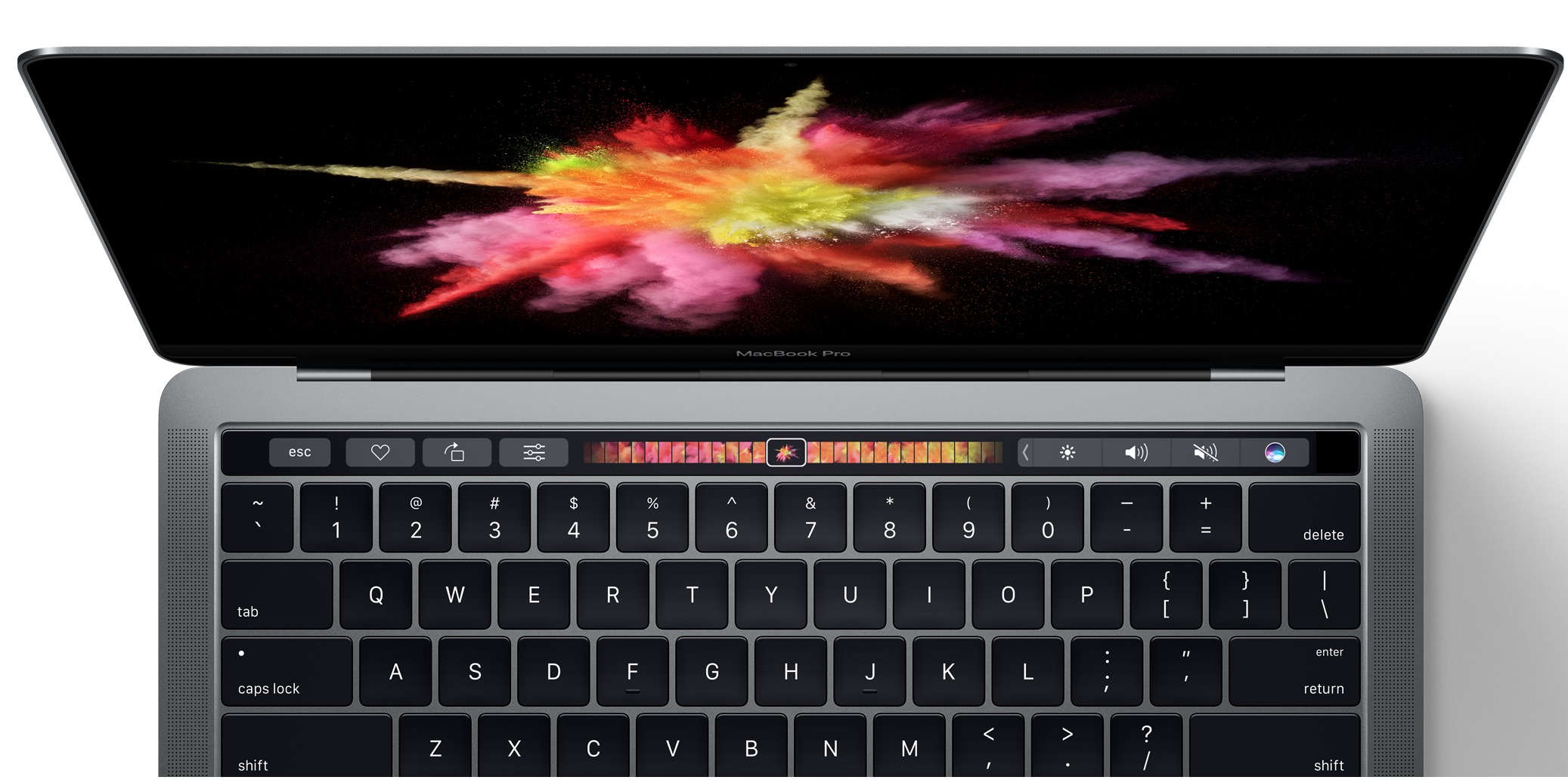
So, what exactly is this mystical strip of glass and pixels? At its core, the Touch Bar is a multi-touch display. It’s not just a static row of buttons; it’s alive, constantly changing its appearance based on what you’re doing on your Mac. It's like having a little mini-iPad perched right above your physical keyboard, dedicated solely to making your life easier.
Let’s break it down a bit, shall we? For the most part, the Touch Bar displays controls that are specific to the app you’re currently using. So, if you’re cruising through photos, you might see buttons for rotating, cropping, or marking favorites. Switch to your video editor? Bam, you’ve got playback controls, trimming tools, and all sorts of fancy doodads at your fingertips. It's designed to put the most relevant actions right where you can see and tap them, without having to dig through menus or remember obscure keyboard shortcuts.
Remember that code I was talking about? Well, in my coding environment, the Touch Bar was showing me options for commenting out lines of code, indenting blocks, and even jumping to specific functions. It was a revelation! Instead of a blank stare and a frustrated sigh, I had instant access to the tools I needed. It felt like I had an extra brain cell dedicated just to remembering those pesky shortcuts. (Seriously, who invented the concept of needing to remember F1 through F12 AND control/option/command combinations for everything? My brain capacity is already at maximum thanks to remembering where I put my keys.)
But it’s not just for the tech-savvy or the code slingers. For the creative types, the Touch Bar can be a dream. Photographers using Lightroom or Photoshop can find quick access to sliders for exposure, contrast, and saturation. Musicians jamming in Logic Pro X get virtual faders and transport controls. Even everyday apps like Safari get a makeover, offering quick ways to switch tabs, go back, or favorite a page. It’s all about making common tasks more immediate and less disruptive to your workflow.
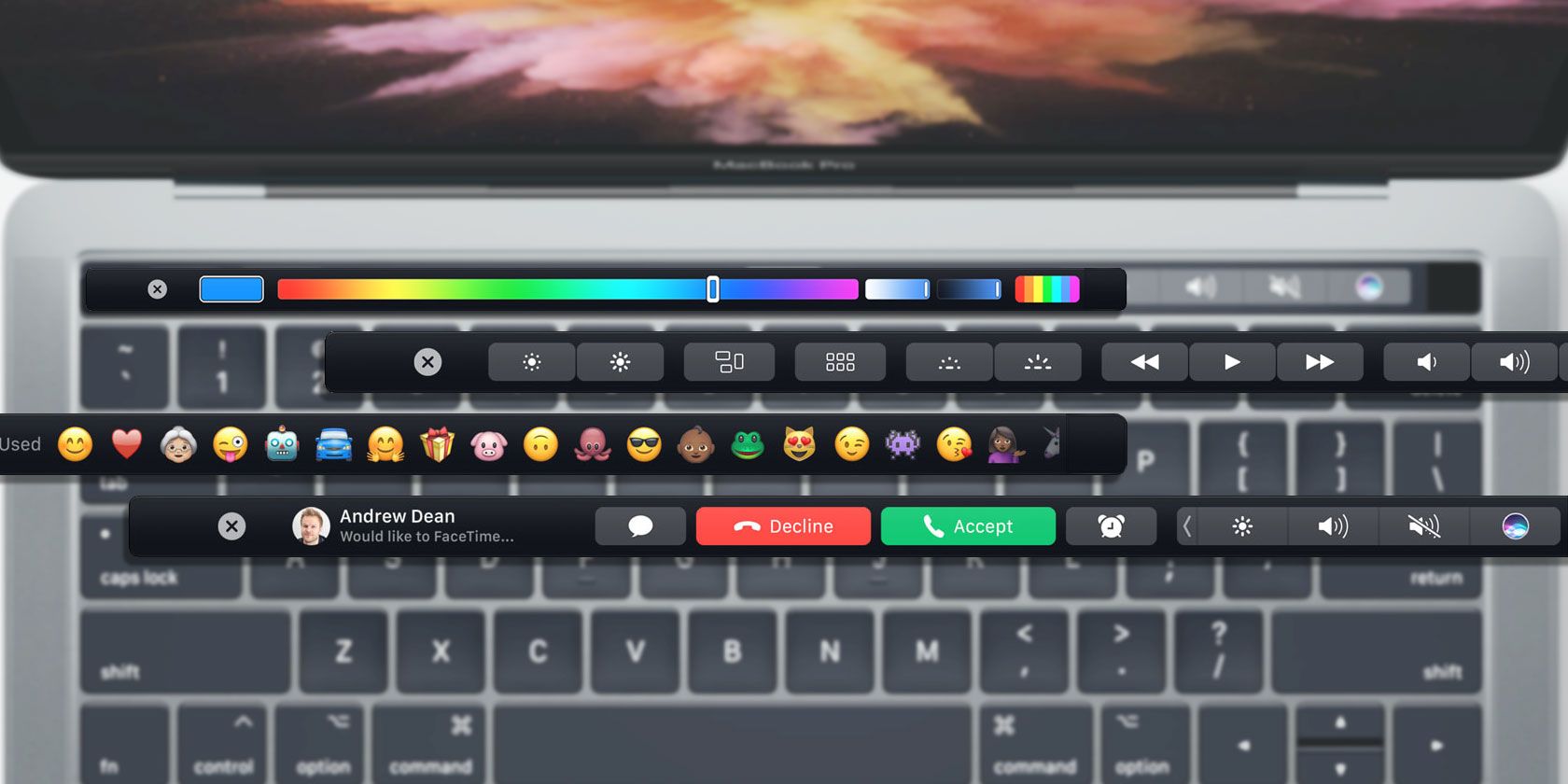
Now, you might be wondering, "Is this thing always super helpful?" And the honest answer, like with most things in life, is a resounding… it depends. Some apps have really embraced the Touch Bar, integrating it deeply and thoughtfully. These are the apps where you'll find yourself instinctively reaching for that strip of light, wondering how you ever lived without it. You'll be swiping through sliders with a grace you didn't know you possessed, tapping buttons with precision, and feeling like a true digital wizard.
Then, there are the other apps. The ones that treat it like an afterthought. Maybe they'll just throw a couple of basic media controls on there, or perhaps nothing at all. It’s a bit like going to a fancy restaurant and ordering the chef's special, only to be served a plate of plain toast. Disappointing, to say the least. It's a reminder that the potential of the Touch Bar is huge, but its actual usefulness is heavily dependent on the developers who bring it to life.
The "Esc" Key Conundrum
One of the most hotly debated aspects of the Touch Bar, especially in its earlier iterations, was the disappearance of the physical "Esc" key. For anyone who’s ever mashed that key in frustration or as a reflex action, its absence from the tactile world was… jarring. It was like a limb was missing! I remember the first few weeks with my Touch Bar MacBook Pro, and my finger would instinctively dart to where the Esc key used to be, only to be met with a smooth, unyielding surface. The little Esc icon would then pop up on the Touch Bar, and I’d have to carefully tap it. It was a dance of muscle memory versus digital reality, and sometimes, digital reality lost.
This was a prime example of the Touch Bar’s contextual nature causing a bit of friction. When you needed that solid, reassuring click of an Esc key, having it be a virtual button could feel… less than ideal. It's like trying to hug someone through a pane of glass. You can see them, you can interact, but that direct physical connection is gone. Many users, especially those who used Esc constantly in certain applications (looking at you, Vim users!), felt this keenly. Apple eventually listened, and newer models brought back a physical Esc key, much to the relief of many.
The Control Strip: Your Ever-Present Companion
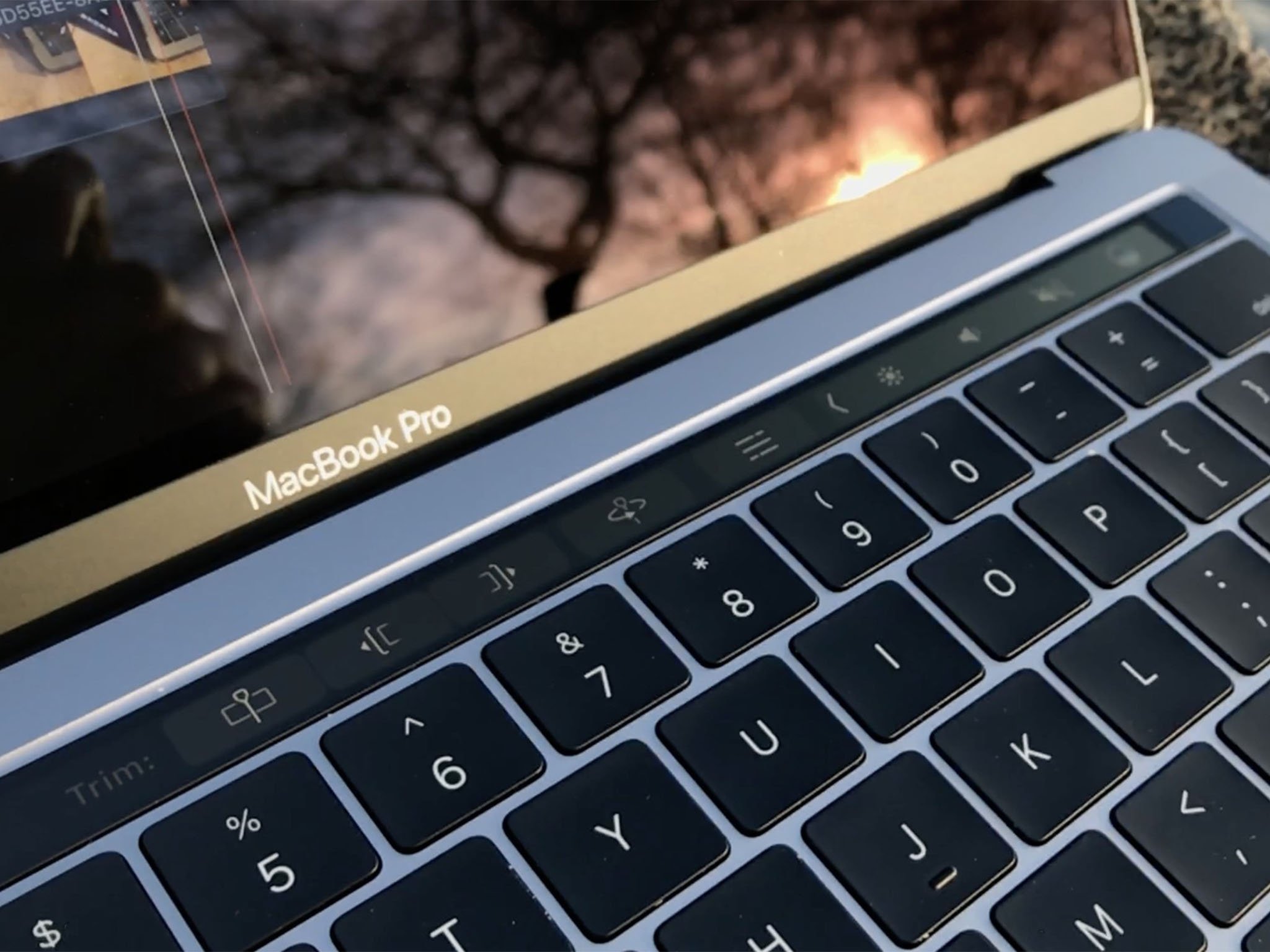
On the right side of the Touch Bar, you’ll usually find something called the Control Strip. This is the part that’s more consistently present, regardless of the app you’re using. Think of it as your quick-access dashboard for the essentials. You’ll typically find controls for brightness, volume, Mission Control (that magical view of all your open windows), and sometimes even a Siri button. This is the part that's designed to be your constant, reliable friend, offering immediate access to system-level functions without you having to hunt around.
You can even customize the Control Strip to a certain extent. Want to add a button to quickly turn on Do Not Disturb? Or maybe have instant access to your media playback controls? You can do that! It’s one of the more straightforward aspects of the Touch Bar, and it’s where many users find the most immediate, everyday benefit. It’s like having a customizable remote control for your Mac, tailored to your most frequent needs.
The "Why" Behind the Touch Bar
So, what was Apple’s grand vision with the Touch Bar? The idea was to bridge the gap between touch interfaces (like on iPhones and iPads) and the traditional keyboard and mouse input. They wanted to offer a more intuitive, glanceable way to interact with your Mac. Instead of relying solely on memorized shortcuts or navigating through nested menus, you could have visual cues and direct manipulation right at your fingertips.

It was an attempt to make the Mac experience more fluid and adaptable. Imagine a keyboard that changes its layout and functions depending on what you’re doing. That was the dream. It’s a bit like having a chameleon for a keyboard accessory. And when it works, it really works. The feeling of seamlessly adjusting an edit with a swipe of your finger or triggering a complex macro with a single tap is undeniably satisfying.
There’s also an element of future-proofing, I suppose. As apps become more complex, the traditional keyboard can only do so much. A dynamic interface like the Touch Bar offers a way to present a vast array of controls without cluttering the main screen. It’s a way to keep the interface clean and focused, while still offering powerful functionality.
Is It for Everyone?
Now, let’s get real for a second. The Touch Bar has been… polarizing. Some people absolutely love it and can’t imagine their workflow without it. They’ve mastered its nuances, customized it to perfection, and swear by its efficiency. They’ll tell you it’s the future of Mac input, and they might just be right.
Then there are the skeptics. The ones who see it as a gimmick, an unnecessary addition that adds complexity without significant benefit. They miss the tactile feedback of physical keys, the predictability of a static keyboard layout, and the sheer muscle memory they’ve built up over years of using traditional Macs. For them, it’s just another thing to get in the way, another distraction from getting their work done.
And then there’s me, somewhere in the middle. I appreciate its potential, and I definitely find it useful in specific scenarios. When an app is well-integrated with the Touch Bar, it can genuinely enhance my productivity and make certain tasks feel more enjoyable. But if an app doesn't leverage it, or if I'm in a situation where I desperately need precise physical feedback, I can find myself a little frustrated. It’s a tool, and like any tool, its effectiveness depends on the job and the user.
Customization: Making it Yours
One of the most important aspects of getting the most out of the Touch Bar is customization. Since it’s so dynamic, being able to tailor it to your specific needs can make a huge difference. You can rearrange buttons, add new ones, and even remove ones you never use. This is where you really get to make the Touch Bar your own. It’s like having a personal assistant who learns your preferences and anticipates your needs.
You can, for instance, create custom keyboard shortcuts and have them appear as buttons on your Touch Bar. Imagine one-tap access to launching your favorite music app, or opening a specific project folder. The possibilities are quite extensive, especially when you start looking into third-party apps that unlock even more power. I've seen people create incredibly complex workflows with custom Touch Bar buttons, and it's truly impressive.
So, while it might have had a rocky start and some divisive opinions, the Touch Bar is undeniably an interesting piece of technology. It represents a bold step by Apple to rethink how we interact with our computers, offering a dynamic and contextual interface that can, when implemented well, significantly enhance the user experience. Whether it becomes a permanent fixture in the MacBook Pro lineup or a stepping stone to something else entirely remains to be seen. But for now, it’s there, a glowing strip of possibility, waiting to make your digital life a little bit easier, one context-aware button at a time.